Download EseeCloud — All Platforms
EseeCloud is available on all major platforms. Download the free desktop CMS client for Windows or Mac, or install the mobile app on Android or iOS.
What is EseeCloud CMS?
EseeCloud CMS (Camera Monitoring System) is the official desktop client for Windows and Mac. If you want to monitor your cameras on a PC, you need the CMS — there is no browser-based web login.
EseeCloud Mobile App
Monitor cameras remotely from your smartphone. Best for on-the-go access, push notifications, and quick live view.
EseeCloud CMS (Desktop)
Full desktop experience for Windows and Mac. Designed for multi-channel monitoring, video playback, timeline review, and PTZ camera control on a large screen.
Looking for the mobile app? Scroll down for Android and iOS downloads.
Download EseeCloud for Your Platform
All downloads are free. Choose your platform below.
EseeCloud CMS for Windows
Version 3.0.8.4The full-featured Windows desktop client. Monitor up to 49 camera channels simultaneously, review recordings on a timeline, and manage all your cameras from one screen.
Requires Windows 7, 8, 10, or 11 (32-bit or 64-bit) · CPU: Intel i3 2.4GHz+ · RAM: 4GB+
Free · Official download · Windows 7 / 8 / 10 / 11 · 32 & 64-bit

EseeCloud for iPhone & iPad
iOS 9.0+Monitor your cameras remotely on iPhone or iPad. Receive instant motion alerts, review SD card and cloud recordings, and share camera access with family members.
Download on the App Store
EseeCloud for Android
4.3★ · 15,300+ ReviewsLive view, motion detection alerts, and full camera management on your Android phone. Rated 4.3 stars with over 5 million downloads on Google Play.

EseeCloud CMS for Mac
Requires macOS 10.9 (Mavericks) or later · 64-bitEseeCloud CMS is also available for macOS. The Mac client lets you view and manage your cameras on a MacBook or iMac, with the same multi-camera grid and playback features as the Windows version.
Download EseeCloud CMS for MacmacOS Security Note
If macOS shows a warning such as "file is damaged" or "cannot be opened", go to System Settings → Security & Privacy → allow apps from identified developers, or open Terminal and run: sudo spctl --master-disable
Sponsored by MagicCreator
Create Viral AI Videos with MagicCreator
Turn your photos into fun, shareable videos with these AI effects.
How to Install EseeCloud CMS on Windows
Installing EseeCloud CMS for Windows takes just a few minutes. Follow these steps to get from download to live view.
Download the Installer
Click the Windows download button above to save EseeCloud_Setup_3.0.8.4.exe to your computer. The file is around 50 MB.
Run the Installer
Double-click the .exe file. Choose your display language, accept the license agreement, and select an installation folder. Tip: use a path without Chinese characters to avoid plugin errors.
Launch CMS and Log In
Open EseeCloud CMS after installation. Log in with your EseeCloud cloud account, or use local login with the default username admin and a blank initial password.
Add Your Camera
Go to Device Management and add your camera by Cloud ID, local LAN search, or IP/DDNS address. Your camera will appear in the live preview grid immediately.
System Requirements
Check that your device meets the minimum requirements before downloading.
| Platform | Operating System | Minimum CPU | Minimum RAM |
|---|---|---|---|
| Windows (CMS) | Windows 7, 8, 10, or 11 (32 & 64-bit) | Intel i3 2.4GHz+ | 4GB+ |
| macOS (CMS) | macOS 10.9 (Mavericks) or later | 64-bit processor | 4GB recommended |
| Android (App) | Android 5.1 or later | — | — |
| iOS (App) | iOS 9.0 or later | — | — |
What You Can Do with EseeCloud CMS
EseeCloud CMS goes beyond basic remote viewing. It is a full camera management platform built for professional and home use on desktop screens.
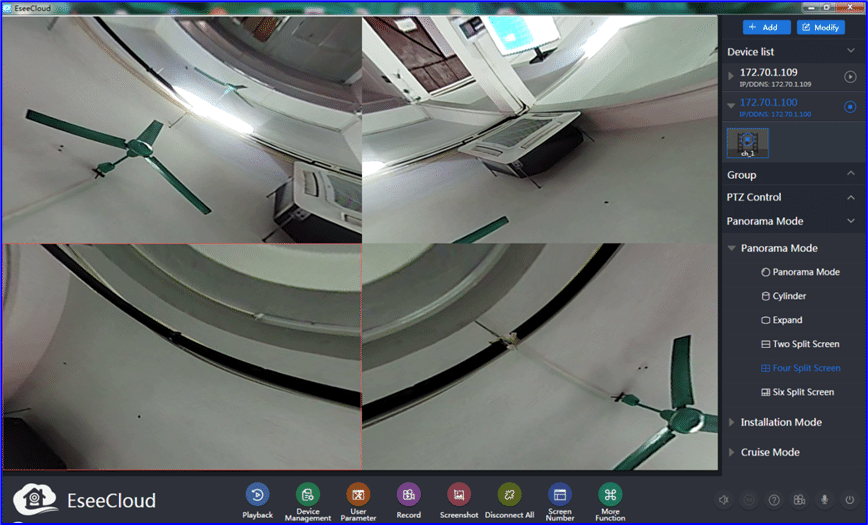
Up to 49 Camera Channels
Switch between 1, 4, 9, 16, 25, 36, or 49 split-screen views. Ideal for managing multiple cameras in a home or small business.
Video Playback & Download
Review recordings by date and time with timeline scrubbing. Batch-download footage from SD card or NVR to your PC for archiving.
PTZ Camera Control
Pan, tilt, zoom, and set preset positions on supported PTZ cameras using your mouse — no separate controller needed.
Remote Device Management
Adjust motion detection sensitivity, configure recording schedules, and manage TF card formatting without physically accessing the camera.
Having Trouble Installing?
These guides cover common installation issues and first-time setup.
Windows Setup Guide
Full CMS installation walkthrough for Windows 10 and 11, including fixes for mfc100u.dll errors and 0xc000007b crashes.
Learn more →Camera Setup Guide
How to add your camera to the mobile app and configure it to your Wi-Fi network for the first time.
Learn more →Troubleshooting Guide
Fix connection failures, offline cameras, app crashes, playback errors, and notification problems.
Learn more →Download FAQs
Common questions about downloading and installing EseeCloud